
Intune shows a policy as applied. But does the device actually meet the CIS benchmark? Until now, Intune couldn’t answer that question on its own.
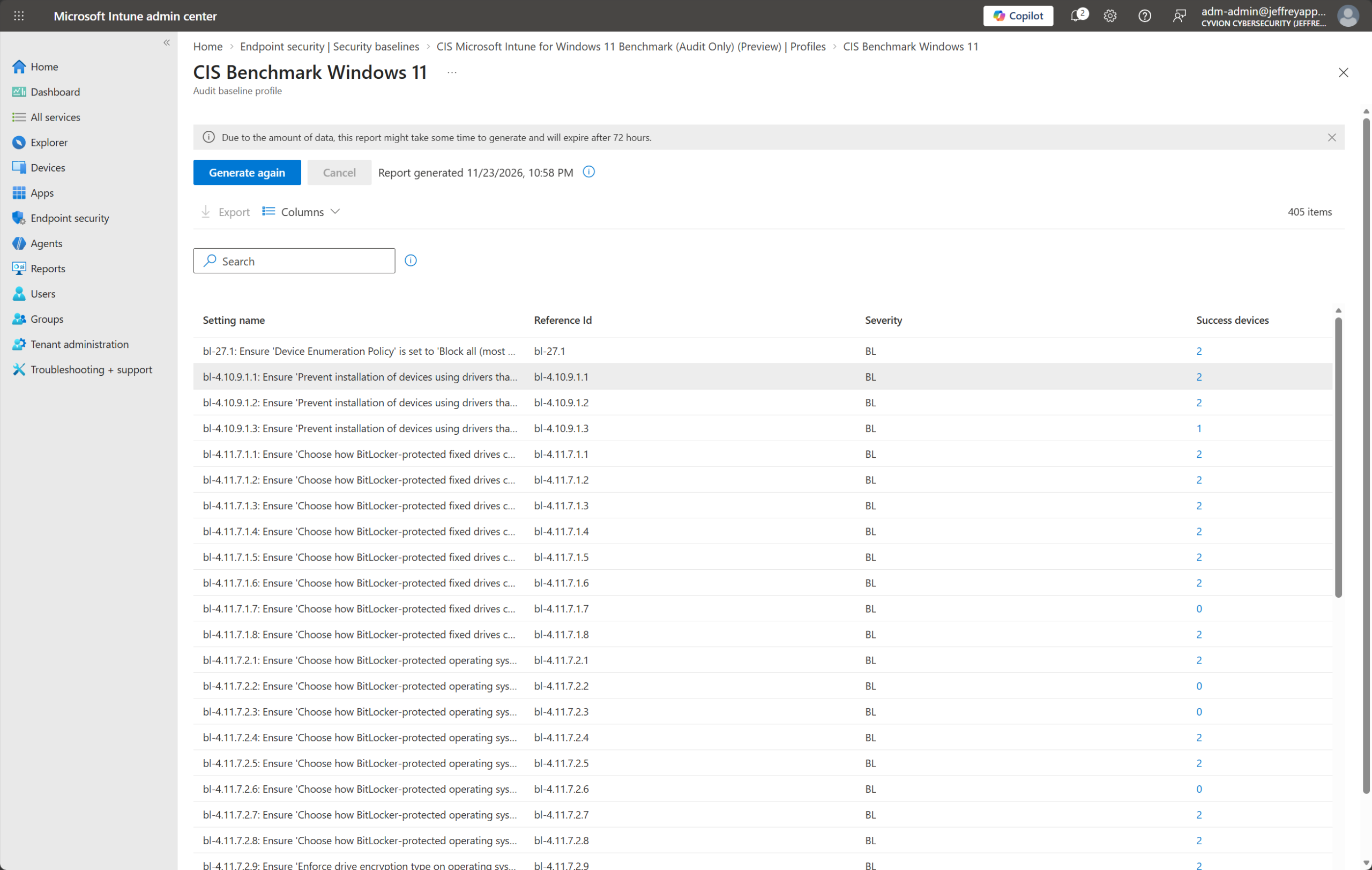
That changes with the CIS Microsoft Intune for Windows 11 Benchmark (Audit Only) baseline. It follows the STIG audit baseline Microsoft released earlier this year. Instead of configuring settings, it checks the device’s real configuration against 405 CIS recommendations and reports what passes and what fails.
In this post, I explain how the CIS audit baseline works, what’s inside the benchmark, how to set it up, and how it compares to Defender Vulnerability Management’s baseline assessment.
Microsoft is adding Advanced Analytics to Microsoft 365 E3 and E5 licenses. This feature is not working for tenants without Advanced Analytics.
Another tool?
Following the introduction of the Windows 11 STIG Audit baseline, the CIS Microsoft Intune for Windows 11 Benchmark (Audit Only) is now also appearing in Microsoft Intune.
This is an interesting development for organizations managing Windows 11 endpoints through Intune, especially those already using Microsoft Defender Vulnerability Management (MDVM), CIS-CAT, or other security configuration assessment solutions.
Until recently, Microsoft Intune primarily focused on deploying and enforcing security configurations. Organizations could use Settings Catalog, Endpoint Security policies, and Microsoft security baselines to configure Windows devices, but these capabilities were not equivalent to performing a formal CIS or STIG benchmark assessment.
Microsoft Defender Vulnerability Management offered a separate approach through its security baseline assessment functionality, which required additional licensing. And, to be honest, it hasn’t seen many updates for endpoints in recent years.
With audit-only benchmarks becoming available directly in Intune, Microsoft is introducing another method for validating the security configuration of managed Windows endpoints.
Prerequisites
Before getting started with CIS Benchmark auditing in Microsoft Intune, make sure your environment meets the following requirements.
Licensing
Microsoft Intune Advanced Analytics is required. Microsoft is adding Advanced Analytics to Microsoft 365 E3 and E5 licenses for commercial tenants, meaning many organizations will no longer need a separate add-on license. So for E3 and E5/ E7 customer, it is included.
Supported platforms
CIS Benchmark auditing is supported on Windows 11 only. Unlike STIG auditing, which also supports Windows 10, CIS auditing is limited to Windows 11 devices.
Device enrollment and management
Devices must be enrolled in Microsoft Intune, and the Device Inventory Agent must be installed and running to collect audit data.
Required permissions
Administrators need the following permissions to manage CIS audit profiles and access reports:
| Permission category | Required permissions |
|---|---|
| Organization | Read |
| Security baselines | Assign, Create, Delete, Read, Update |
| Device configurations | View Reports |
The built-in Endpoint Security Manager role provides the permissions needed to manage audit profiles. However, make sure administrators who need to view audit results also have the View Reports permission.
Additionally, verify that the appropriate scope tags and target group access are configured so administrators can manage profiles and view results for the intended devices.
Security configuration is not the same as security assessment
The first important distinction is between configuring a Windows endpoint and evaluating its security configuration.
Traditional Intune security baselines are configuration policies. They define recommended settings and use Windows management interfaces to apply those settings. For example, an administrator can use the Intune Settings Catalog or Endpoint Security profiles to configure profiles and configurations.
A successfully applied configuration policy indicates that the relevant management operation completed. It does not automatically establish that the endpoint meets every requirement in a particular CIS or STIG benchmark. It often happens that Intune shows everything green while the setting never reached the endpoint.
Why Microsoft Defender Vulnerability Management was used
Before native audit-only benchmark assessments became available in Intune, organizations commonly used dedicated security configuration assessment solutions.
Within Microsoft’s ecosystem, Defender Vulnerability Management provided security baseline assessments based on recognized standards, including CIS and STIG. The downside of the Vulnerability Management Add-On was the price; it was not part of Microsoft Defender and Intune and was optional for Endpoints. One benefit was that it worked for all endpoints, including those not onboarded via Microsoft Intune.
The difference between CIS Windows 11 and CIS Intune for Windows 11
Before discussing the architecture, it is important to understand the benchmark itself. CIS publishes different benchmarks for different products and management technologies.
Two relevant examples are:
- CIS Microsoft Windows 11 Benchmark: This benchmark defines recommended security configurations for the Windows 11 operating system.
- CIS Microsoft Intune for Windows 11 Benchmark: This benchmark provides security configuration recommendations aligned with Microsoft Intune’s management capabilities.
The baseline is named CIS Microsoft Intune for Windows 11 Benchmark (Audit Only). It can be found in the Microsoft Intune admin center under Endpoint security > Security baselines, alongside the existing configuration baselines. 405 items are being monitored; the Intune CIS baseline is defined as follows:
| Category | Settings | Share | L1 | L2 | BL | What it covers |
|---|---|---|---|---|---|---|
| Administrative templates | 134 | 33% | 97 | 37 | 0 | Classic Group Policy: RPC, printing, AutoPlay, Remote Desktop, WinRM, event logs, logon UI |
| System services | 40 | 10% | 20 | 20 | 0 | Services to disable: IIS, FTP, SSH server, Xbox, Bluetooth, Print Spooler, WinRM |
| Privacy and other | 38 | 9% | 20 | 18 | 0 | Telemetry, Cortana, location, camera, widgets, search, toasts |
| User rights assignment | 35 | 9% | 34 | 1 | 0 | Who may debug, log on, back up, take ownership or act as the OS |
| Security options | 32 | 8% | 30 | 2 | 0 | UAC, NTLM, SMB signing, guest account, logon banner |
| BitLocker and device control | 29 | 7% | 0 | 0 | 29 | Drive encryption, recovery keys, removable media, device installation |
| Advanced audit policy | 27 | 7% | 27 | 0 | 0 | Logon, process creation, group changes, policy changes |
| Windows Firewall | 23 | 6% | 23 | 0 | 0 | Domain, private and public profiles, logging |
| SMB and LanMan | 14 | 3% | 14 | 0 | 0 | Encryption, minimum dialect, mailslots, guest logons |
| Device Guard / VBS | 7 | 2% | 7 | 0 | 0 | Credential Guard, HVCI, LSA protection, Secure Launch |
| Apps and Store | 7 | 2% | 5 | 2 | 0 | Installer elevation, Game DVR, Store auto-update |
| LAPS | 6 | 1% | 6 | 0 | 0 | Local admin password length, age, complexity, backup |
| Windows Update | 5 | 1% | 5 | 0 | 0 | Auto-update, deferral, preview builds, pause blocking |
| Windows Hello | 4 | 1% | 4 | 0 | 0 | PIN length, anti-spoofing, security device |
| Phishing protection | 4 | 1% | 4 | 0 | 0 | Enhanced phishing alerts in SmartScreen |
By level, the split is 296 L1 settings (73%), 80 L2 (20%) and 29 BitLocker (7%).
The levels are not severity ratings. They describe how much a setting may cost in usability, and who should adopt it.
| Level | Settings | Intent | Typical examples |
|---|---|---|---|
| L1 | 296 | Baseline hardening with little impact on users | Audit policy, user rights, firewall on, UAC, SMBv1 off, LAPS |
| L2 | 80 | Defense in depth for high-security environments; may break features | Disable Remote Desktop, WinRM, Print Spooler, Bluetooth; block camera, OneDrive sync, Store |
| BL | 29 | BitLocker and device-control settings, deployed as their own block | XTS-AES encryption, recovery key handling, blocking unprotected removable drives |
L2 is where the trade-offs live. Almost half of it (37 settings) are administrative templates that switch off legacy features, and another 20 disable system services outright.
Creating the profile
- Open the Microsoft Intune admin center and navigate to Endpoint security > Security baselines.
- Locate CIS Microsoft Intune for Windows 11 Benchmark (Audit Only) and click Create profile to begin configuring the audit profile.

Create the profile:

What happens when an Intune audit baseline is assigned?
Unlike traditional Intune security baselines, audit-only baselines do not enforce configuration settings. Instead, they deliver a benchmark assessment definition to Windows, where the device evaluates its current security configuration and returns the results to Intune.
Unlike traditional Intune security baselines, audit-only baselines do not enforce configuration settings. Instead, they deliver a benchmark assessment definition to Windows, where the device evaluates its current security configuration and returns the results to Intune. The Microsoft Device Inventory Agent processes the assessment definition and collects configuration information locally via multiple sources, such as the registry, GPO, local security polficies, and audit policies.
Microsoft documents that initial audit results may take 24 hours or longer to appear
Device Inventory Agent
The CIS audit is evaluated by the Device Inventory Agent. Make sure the Device Inventory Agent is working. The agent must be installed and actively collecting inventory data. If it isn’t, no CIS results will be available, regardless of the profile status.
A good starting point to verify that logging is working as expected is to check the IntuneInventoryHarvesterLog. This log provides insight into the inventory collection process and helps identify potential issues.
And good to know. CIS results depend on the inventory cycle. Reports are not updated in real time, and initial results may take 24 hours or longer to appear.
Reporting in the portal
Microsoft documents that initial STIG/ CIS audit results may take 24 hours or longer to appear. Subsequent updates can lag behind the local evaluation by one or two device check-in cycles.
Go to Endpoint security > Security baselines and select the CIS audit baseline. From this view, you can select the profile and click Generate again to refresh the details.

Audit-only baselines introduce a third perspective
With STIG and CIS Audit Only, Intune is expanding from configuration deployment into standardized security configuration assessment. That introduces some overlap with Defender Vulnerability Management Add-On
However, the tools still have different primary responsibilities.
| Capability | Intune configuration | Intune Audit Only | Defender Vulnerability Management Add-On |
|---|---|---|---|
| Deploy security settings | Yes | No | No |
| Enforce desired configuration | Yes | No | No |
| Evaluate benchmark requirements | Not its primary function | Yes, supported checks | Yes, supported benchmarks |
| Assess endpoint security weaknesses | Limited | Benchmark-focused | Broader security exposure |
| Support remediation | Through policies | Findings guide remediation | Recommendations and security workflows |
| Licensing | Intune | Advanced Analytics | MDVM add-on or standalone |
Conclusion
The CIS audit baseline closes a long-standing gap in Intune. It no longer just tells you a policy was applied; it shows whether the device actually meets the CIS benchmark. Because it’s audit-only, you can assign it next to your existing baselines and Settings Catalog profiles without any risk of conflicts.
It’s not a full replacement for Defender Vulnerability Management. It supports Windows 11 only; results can take 24 hours or more to appear; there are no Advanced Hunting data results, and it doesn’t remediate anything. For Intune-managed Windows 11 devices, though, it’s the most practical way to measure CIS compliance today, and with Advanced Analytics coming to E3 and E5, many organizations get it at no extra cost.
